Jetshell confi guration – Инструкция по эксплуатации COWON iAUDIO M3
Страница 38
iAUDIO M3
38
Playing MP3, MP2, WAV, WMA, ASF, Audio CD, and Play List (m3u)
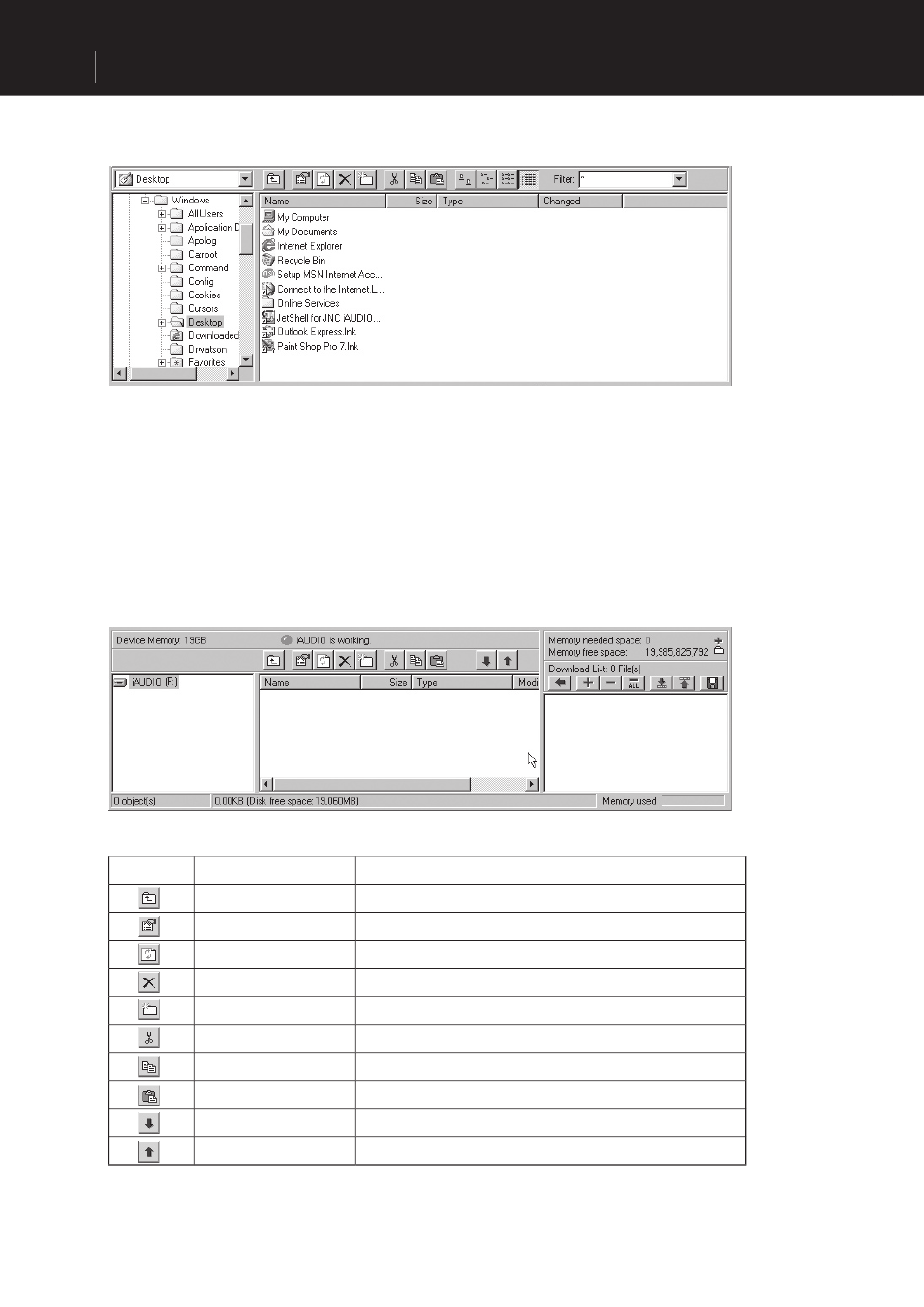
The File Management Section of JetShell looks just like Windows Explorer. The left window shows
folders, disks, and CD-ROM in a tree structure, and the right window shows the fi le list in a folder.
Memory Management
The bottom part of JetShell consists of ‘Memory Management Section’ and ‘Download List.’ When
iAUDIO is working normally, the red lamp fl ashes with the message ‘iAUDIO is working’ as shown in
the fi gure. The fi les transferred from PC to iAUDIO by the user are displayed in the middle window. The
"Memory used" bar shown at the bottom right indicates the used memory size of the total fl ash memory of
iAUDIO. If this bar is almost full, it means that there is almost no free space available in iAUDIO.
Button
Function
Explanation
Up
Move to the upper folder.
Registration Info
Display the registration information of the fi le.
Refresh
The contents of fl ash memory are reread and updated.
Delete
Delete the selected fi le or folder.
New folder
Create a new folder.
Cut
Cut the selected fi le or folder.
Copy
Copy the selected fi le or folder.
Paste
Paste the cut or copied fi le.
Transfer to Memory
Transfer the selected fi les or folder from PC to iAUDIO.
Transfer to PC
Transfer the selected fi les or folder from iAUDIO to PC.
JetShell Confi guration