Touchpad – Инструкция по эксплуатации Samsung NP-R428I
Страница 42
1-42
Touchpad
The touchpad provides the same function as a mouse and the left and right buttons of the
touchpad plays the role of the left and right buttons of a mouse.
Before You Start!
Use the Touchpad with your fingers. Using a sharp object may damage the
Touchpad.
If you touch the Touchpad or press the Touchpad buttons while booting up, the
Windows boot time may be extended.
The images used for the illustration are of a representative model, therefore the
images may differ from the the actual product.
Either type A or B is provided depending on the model.
To deactivate the touchpad LED function or to keep the LED on, change the setting by
selecting
Advanced > Touch Pad LED in the BIOS Setup.(Optional)
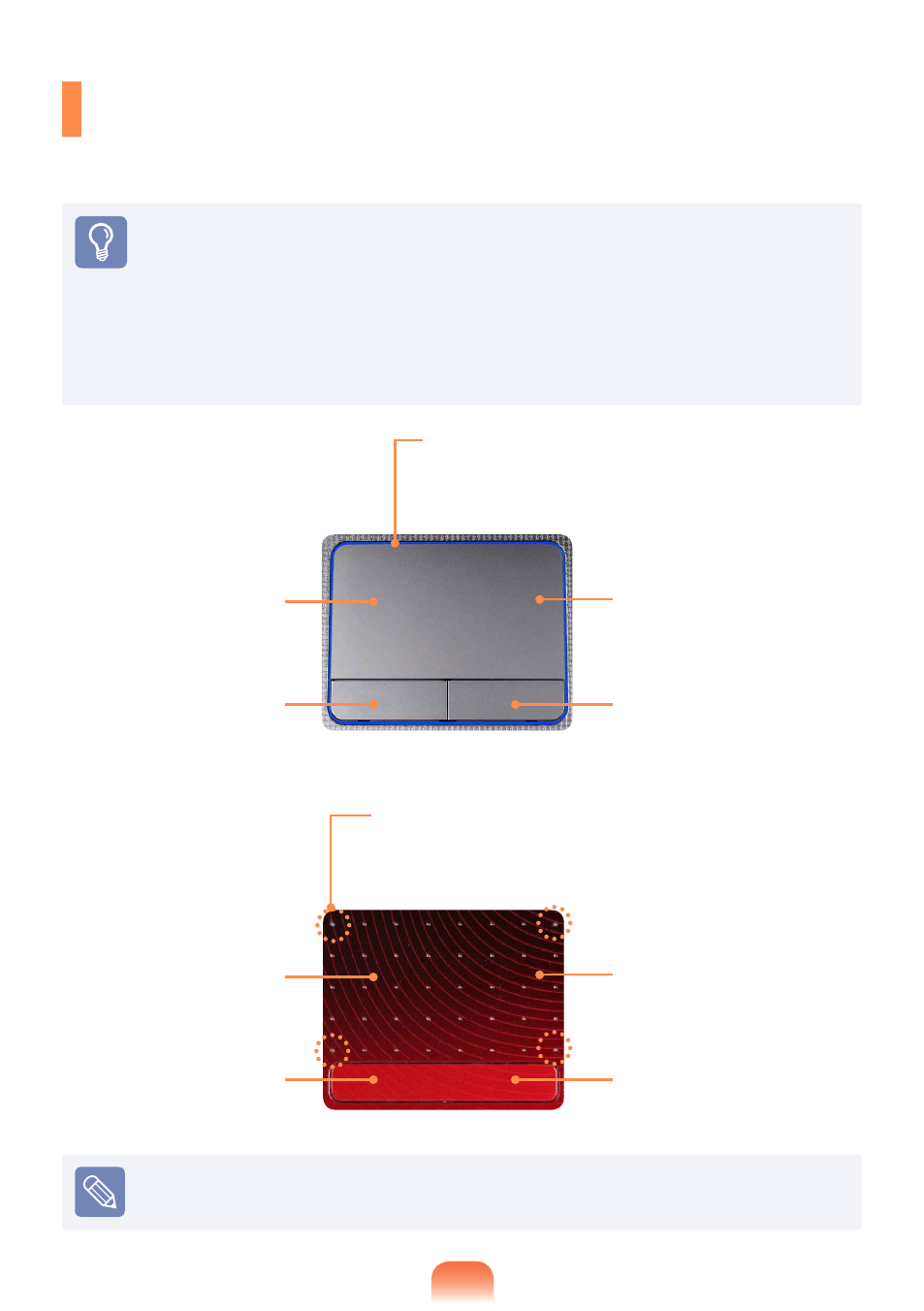
► [Model A]
► [Model B]
Touchpad
Used to move the
cursor.
Scroll Area
Plays the role of the mouse
wheel. You can scroll up and
down using the Scroll Area.
Touchpad Left Button
You can select or run a
program using this button.
Touchpad Right Button
Plays the role of the right
mouse button.
Touchpad LED (Optional)
Touchpad LED is lit while you touch the Touchpad.
The power is automatically turned off if there is no
touchpad input for 30 seconds.
Touchpad
Used to move the
cursor.
Scroll Area
Plays the role of the mouse
wheel. You can scroll up and
down using the Scroll Area.
Touchpad Left Button
You can select or run a
program using this button.
Touchpad Right Button
Plays the role of the right
mouse button.
Touchpad LED (Optional)
Touchpad LED is lit while you touch the Touchpad.
The power is automatically turned off if there is no
touchpad input for 30 seconds.